
Deploy from Gemini Spark
Add VibeHost as a custom app in Gemini's Connected Apps and give what you build with Gemini a permanent URL you control, from the chat and without a terminal.
You built something with Gemini, maybe a dashboard or a report, and someone asks for a link.
Gemini's own share button links to the conversation, not to the thing you built, and you can't control who else opens it. To give them a permanent URL on your own subdomain, with privacy settings you control, connect VibeHost.
You set it up once under Gemini's Connected Apps. After that, you ask Gemini to deploy from any chat. Gemini calls this a custom app, meaning an MCP server you register by URL. It is listed under Custom Apps for Spark.
Connect VibeHost to Gemini Spark
Before you start
Google's custom apps help page sets the ground rules. Sign in with a personal Google Account, because work and school accounts can't add custom apps yet. Keep Keep Activity turned on, since custom apps are unavailable while it is off. You can set up the app on the web (gemini.google.com) or in the Gemini desktop app, and once connected it is available in the mobile app too. Leave Advanced settings alone. They are only for servers without Dynamic Client Registration, and VibeHost supports it.
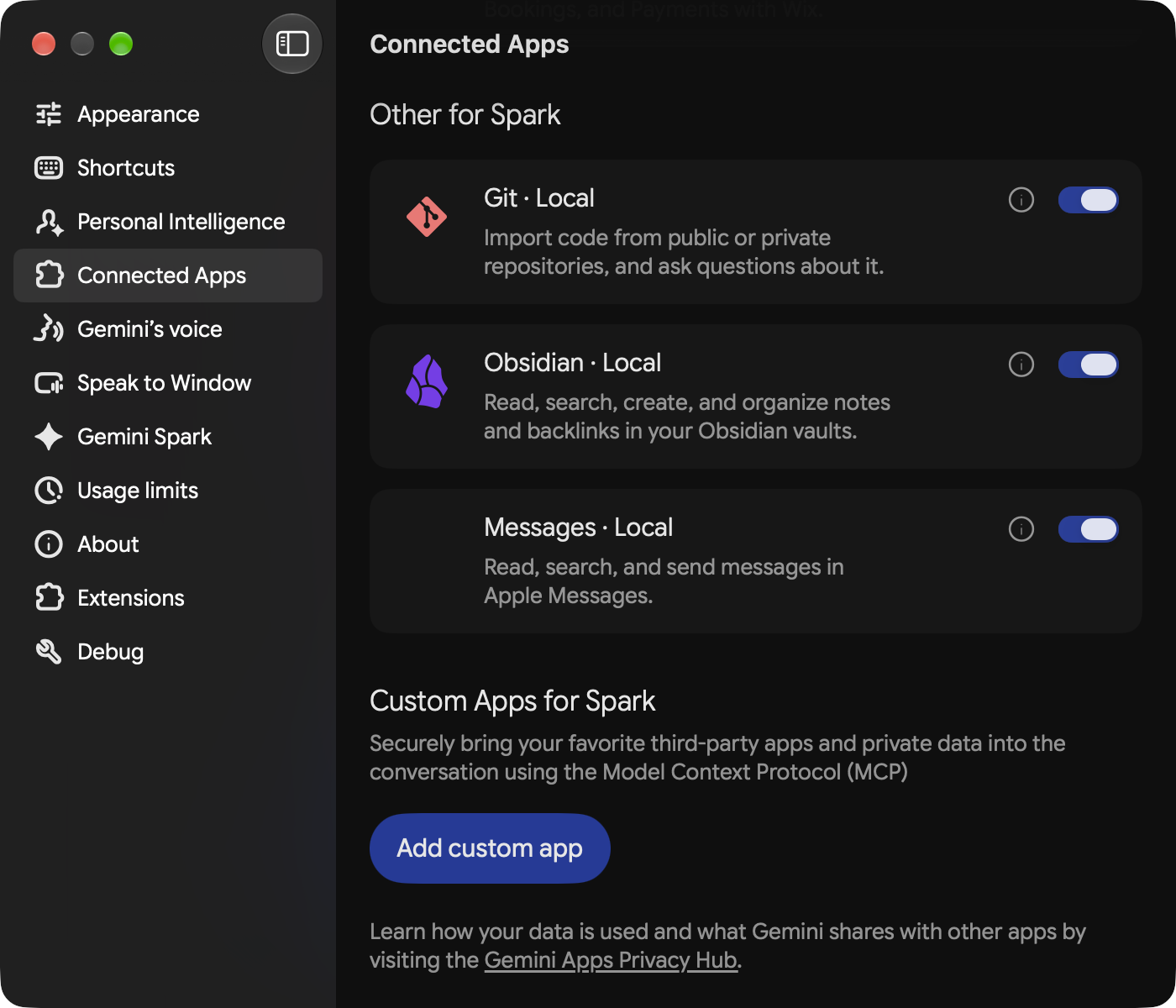
1. Open Connected Apps
Open the Gemini desktop app. Click Settings → Connected Apps, then scroll to Custom Apps for Spark.
On the web, open gemini.google.com, click Settings in the bottom-left corner, then Connected Apps. If you don't see it, open Personal Intelligence first, then Connected Apps.
2. Add a custom app
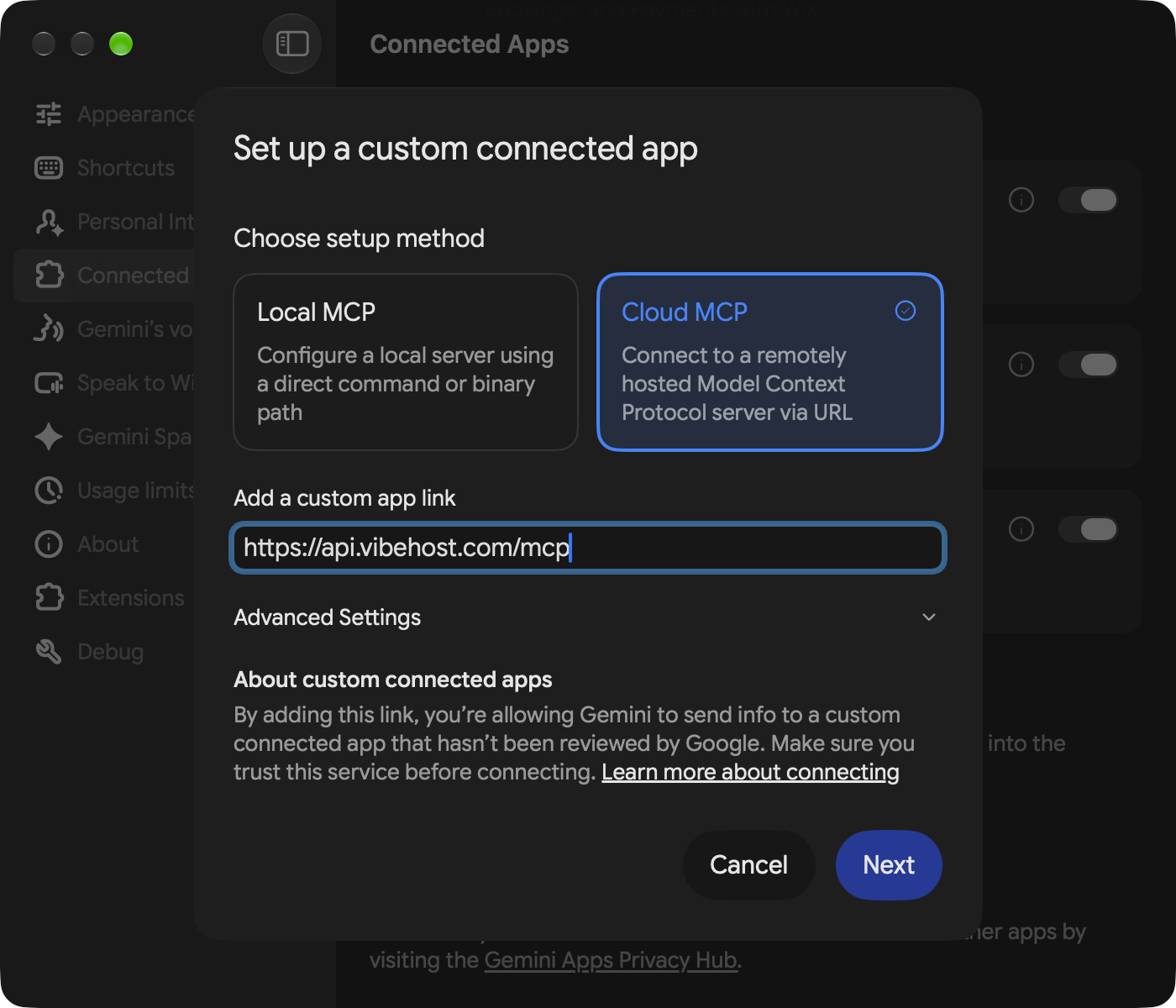
Click Add custom app (on the web: Add a custom app). Choose Cloud MCP as the app type.
Under Add a custom app link, paste the VibeHost MCP server URL:
- MCP server URL:
https://api.vibehost.com/mcp
Leave Advanced settings as-is. Click Next.
3. Save your custom app
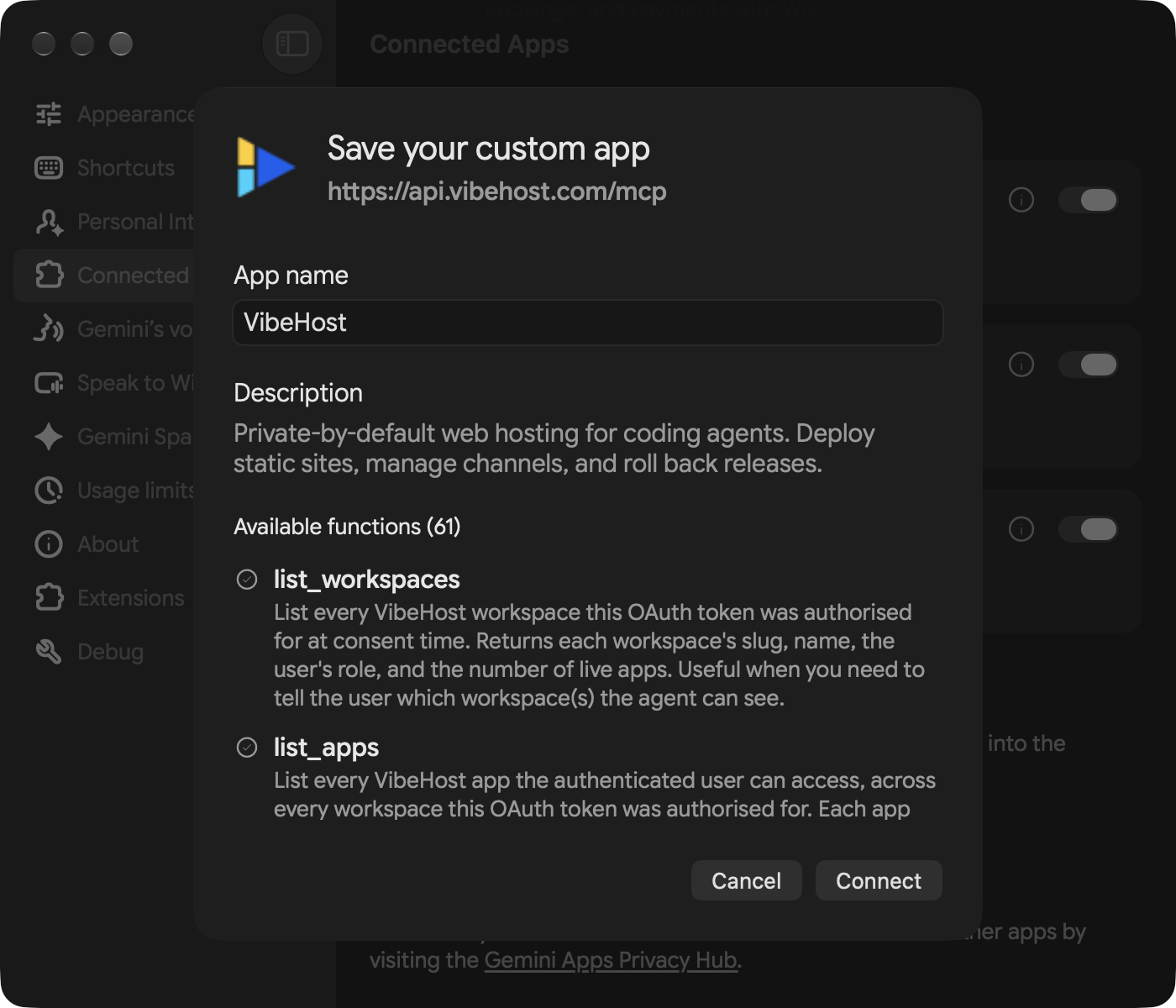
Gemini contacts the server and shows a Save your custom app dialog with the app's details: the name VibeHost, its description and the list of Available functions it exposes. Nothing here needs editing. Click Connect.
4. Authorize
Your browser opens for a one-time OAuth sign-in (Google or email, same as vibehost.com). Approve it, and VibeHost appears in your custom apps list as VibeHost @vibehost with its toggle switched on.
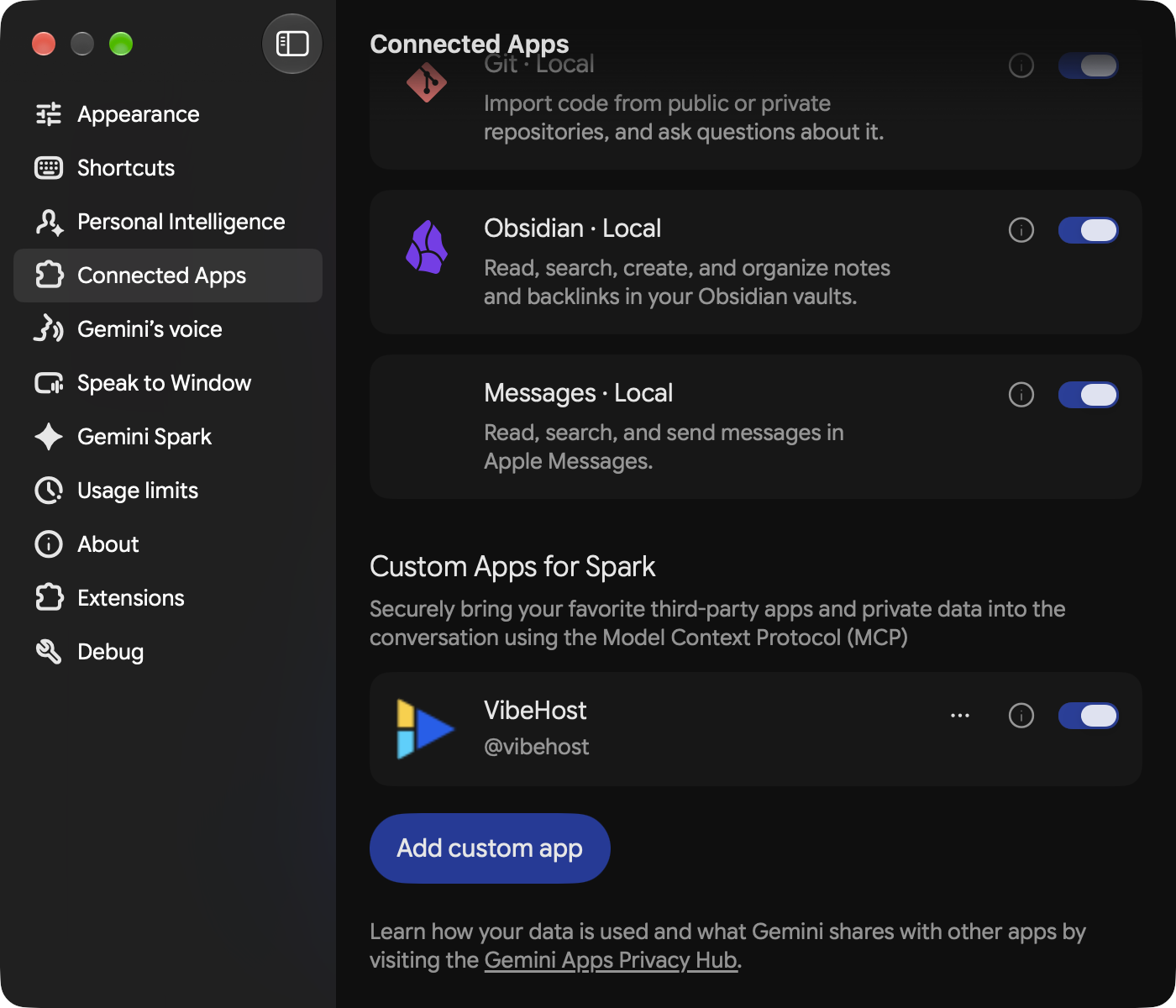
Once authorized, Gemini can deploy to VibeHost. The connection persists across sessions and devices, so you only do this once.
Deploy an artifact
With VibeHost connected, tell Gemini what you want. To make sure Gemini routes the request to VibeHost, type @ and pick VibeHost from the list, then ask:
@VibeHost deploy this to VibeHost.
Or be more specific:
@VibeHost deploy this dashboard as an app called "q2-metrics". Make it public.
Gemini creates the app, writes the artifact into it and deploys it behind the scenes (the tool calls are described once, in Choosing an upload path), then returns a live URL like https://q2-metrics-yourworkspace.vibehost.space.
The artifact renders as it does in Gemini's preview, with its interactive elements, charts, and animations. Anything that needs a backend (API calls to localhost, database connections) won't work, since VibeHost serves static files.
What you can do from chat
Once connected, you can ask Gemini to:
| Say this | What happens |
|---|---|
| "Deploy this to VibeHost" | Creates an app + deploys the current artifact |
| "Update the deploy" | Pushes a new version to the same URL |
| "Make it public" / "Make it private" | Changes visibility |
| "Roll back to the previous version" | Reverts to the last deployment |
| "Share this with sarah@acme.com" | Adds a viewer grant by email |
| "Give me a share link that expires in 7 days" | Creates a time-bound access link |
| "Delete the app" | Removes the app and all deployments |
Whether Gemini asks before it deletes an app, changes who can see it, or does anything else is up to how Gemini handles tool confirmations for custom apps. VibeHost also instructs the agent not to make an app public unless you ask for it directly.
When to use this vs. the Chrome extension
| Gemini Spark + MCP | Chrome extension | |
|---|---|---|
| How | Talk to Gemini in chat | Click a button on the canvas |
| Best for | Iterating on deploys ("make it public, now roll back, now share with Sarah") | Quick one-off deploys from any AI canvas |
| Works with | Gemini web, desktop and mobile apps | Claude, ChatGPT, Gemini, AI Studio, v0 |
| Access control | Full (grants, share links, passwords, visibility) | Basic (private by default, change via CLI/dashboard) |
Both deploy to the same VibeHost backend. A deploy started from the extension can be updated from chat, and vice versa.
Troubleshooting
Connected Apps has no custom apps section
You are signed in with a work or school account, or Keep Activity is off. Switch to a personal Google Account and turn Keep Activity on in Gemini's activity settings, then reload.
The "Save your custom app" dialog never appears
Gemini could not reach https://api.vibehost.com/mcp. Check the URL for typos (it is /mcp, with no trailing slash) and try again. A VPN or corporate proxy that blocks the request has the same effect.
Gemini answers without using VibeHost
Type @ in the prompt box and select VibeHost before your request, so Gemini routes it to the custom app.
Deploy fails with "UNAUTHENTICATED"
Your OAuth token may have expired. Open Settings → Connected Apps, find VibeHost, disconnect it and connect again.
Artifact deploys but doesn't render correctly
VibeHost serves static files. If your artifact fetches from localhost or calls a backend API, those calls will fail once deployed. Keep artifacts self-contained.
See also
- MCP server lists every tool and explains OAuth.
- The Chrome extension adds a deploy button to Gemini Canvas in the browser.
- Grants and visibility explains the access control model.
- Share links give time-bound access without sign-up.
Deploy from Claude Desktop
Add VibeHost as a custom connector in Claude Desktop and give your Claude artifacts a permanent URL you can share, from the chat and without a terminal.
Deploy from ChatGPT
Connect VibeHost as an MCP app in ChatGPT and deploy Canvas artifacts to a permanent URL you control, from the chat and without a terminal.